Build
Rust 1.94 or newer, Python 3, Git, and Bash are required. Linux also needs a Vulkan-capable graphics driver; macOS uses Metal. Install the dependencies for your system below, then follow Build and install.
Ubuntu / Debian / Linux Mint / Pop!_OS
sudo apt install build-essential git curl python3 pkg-config cmake clang libclang-dev \
  libfontconfig1-dev libfreetype-dev libxkbcommon-dev libxkbcommon-x11-dev \
  libwayland-dev libssl-dev libzstd-dev libxcb1-dev vulkan-tools
Arch Linux / EndeavourOS / Manjaro
sudo pacman -Syu --needed base-devel git curl python pkgconf cmake clang \
  fontconfig freetype2 libxkbcommon libxkbcommon-x11 wayland openssl zstd \
  libxcb vulkan-icd-loader vulkan-tools ttf-jetbrains-mono-nerd
Install your GPU's Vulkan driver as well: vulkan-radeon for AMD, vulkan-intel for Intel, or the appropriate NVIDIA driver for your GPU. Manjaro users should use their distribution's driver tools.
Fedora
sudo dnf install gcc gcc-c++ make git curl python3 pkgconf-pkg-config cmake \
  clang clang-devel fontconfig-devel freetype-devel libxkbcommon-devel \
  libxkbcommon-x11-devel wayland-devel openssl-devel libzstd-devel \
  libxcb-devel vulkan-loader vulkan-tools
openSUSE Tumbleweed
sudo zypper install gcc gcc-c++ make git curl python3 pkg-config cmake clang \
  clang-devel fontconfig-devel freetype2-devel libxkbcommon-devel \
  libxkbcommon-x11-devel wayland-devel libopenssl-3-devel libzstd-devel \
  libxcb-devel vulkan-tools
macOS (Apple Silicon or Intel)
Install and open Xcode with the macOS components, then select its developer tools:
xcode-select --install
sudo xcode-select --switch /Applications/Xcode.app/Contents/Developer
sudo xcodebuild -license accept
With Homebrew installed:
brew install cmake pkgconf python git
If Xcode reports that the Metal toolchain is missing, run xcodebuild -downloadComponent MetalToolchain before building. Build on the Mac you will run Ducky on; the script builds for the host architecture.
Build and install
Install Rust using rustup if needed:
curl --proto '=https' --tlsv1.2 -sSf https://sh.rustup.rs | sh -s -- -y
. "$HOME/.cargo/env"
rustup update stable
Clone the repository and run the installer:
git clone https://github.com/OrielProject/ducky.git
cd ducky
./build.sh
./build.sh builds the release binary, installs ~/.local/bin/ducky, and adds that directory to your shell's PATH. Open a new terminal to use ducky.
- Linux: installs Ducky Shell in your desktop app launcher. Configuration is in
~/.config/ducky/. - macOS: installs
~/Applications/Ducky.appfor Finder or Spotlight. Configuration is in~/Library/Application Support/ducky/. You can launch it withopen "$HOME/Applications/Ducky.app". - Set
XDG_CONFIG_HOMEto override the configuration root on either platform. Existing configuration files are preserved. - Use
./build.sh --debugfor a development build, orcargo build --lockedto build without installing. - For the default appearance, install JetBrainsMono Nerd Font Mono from Nerd Fonts, or set
fontinconfig.luato an installed monospace font. Arch's command above includes the font.
Screenshots
Features
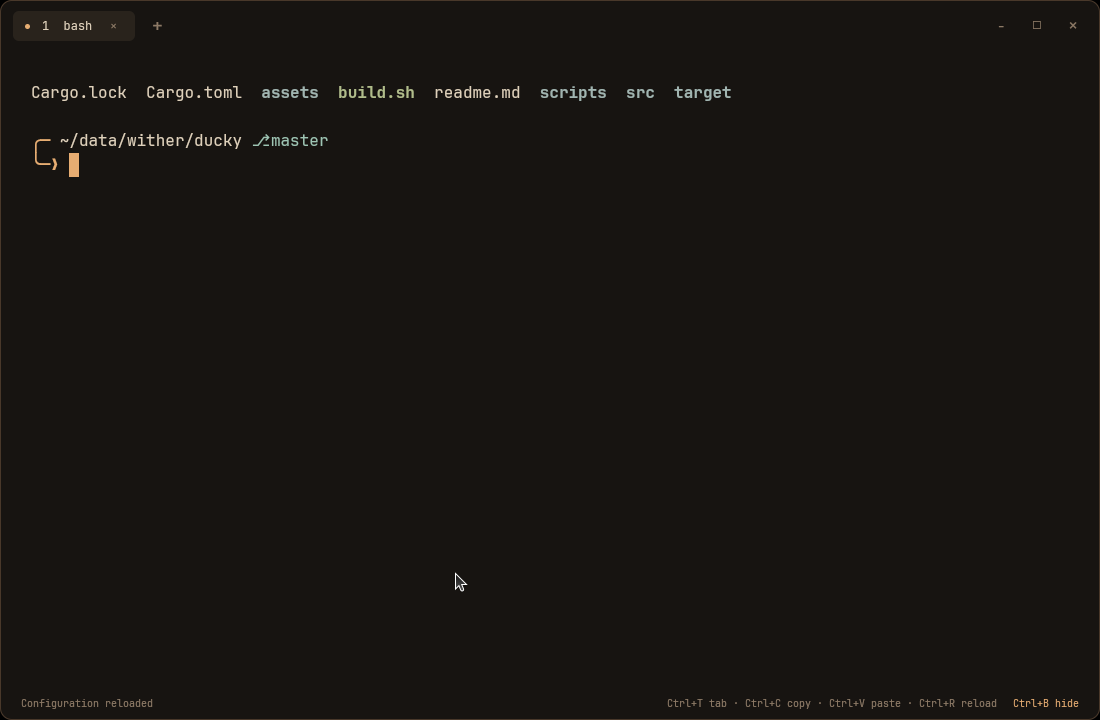
- Default warm amber theme, JetBrainsMono Nerd Font Mono, and a two-line Bash prompt with Git branch and exit status. Install the font for the matching appearance.
- Native Rust + GPUI rendering; PTY-backed login shell, ANSI/256/truecolor, alternate screen, Unicode and IME input.
- Integrated draggable tab bar with window controls and resize edges.
- Set
opacity(0.2–1) inconfig.luafor a translucent, blurred window background. Ctrl+Bhides or restores the bottom bar; setshow_status_bar = falsein Lua to keep it hidden at launch. Remaptoggle_statusin the Luashortcutstable to change the shortcut.- Tabs:
Ctrl+Topens,Ctrl+Wcloses the active tab,Alt+1–Alt+9selects a tab (Alt+0selects tab 10), andCtrl+Tabcycles. Close any tab with its × button or middle-click. Ctrl+Ccopies without interrupting the foreground process.Ctrl+Alt+Csends the terminal interrupt.- Mouse selection,
Ctrl+Ccopies selection (or visible screen),Ctrl+Vpastes with bracketed-paste support. - Mouse-wheel scrollback and
Shift+PageUp/Shift+PageDown. - Lua 5.4 configuration in your platform's config directory under
ducky/config.lua(paths above), created on first launch. Lua modules can live alongside it. - Customize fonts, spacing, colors, ANSI palette, window dimensions, shell arguments, environment, startup commands, and shortcuts. The generated config contains examples. Lua scripts run with your user permissions.
Ctrl+Rreloads appearance and bindings; new tabs pick up shell/environment changes.Ctrl+=/Ctrl+-changes font size.ducky --check-configvalidates Lua;ducky --config-dirprints its location.
On macOS, Ducky uses Command for the Ctrl shortcuts shown above and Option for Alt. Ctrl+Tab and Ctrl+Shift+Tab use the physical Control key to cycle tabs because macOS reserves Command+Tab for switching apps. Physical Control also sends terminal input such as Ctrl+C to interrupt the foreground process.
Application shortcuts and raw terminal byte bindings are configured in Lua. Both tables use the same modifier rules, so existing ctrl bindings work with Command on macOS.
shortcuts = {
  ['ctrl-t'] = 'new_tab',
  ['ctrl-w'] = 'close_tab',
  ['ctrl-c'] = 'copy',
  ['ctrl-v'] = 'paste',
  ['ctrl-alt-c'] = 'interrupt',
  ['ctrl-r'] = 'reload',
  ['ctrl-b'] = 'toggle_status',
  ['alt-1'] = 'tab:1',
  ['alt-2'] = 'tab:2',
  -- Also: next_tab, previous_tab, font_larger, font_smaller, scroll_up, scroll_down.
}
The shortcuts table replaces the default map when supplied. bindings sends raw strings and takes priority over application shortcuts. Press your reload shortcut after editing the config.
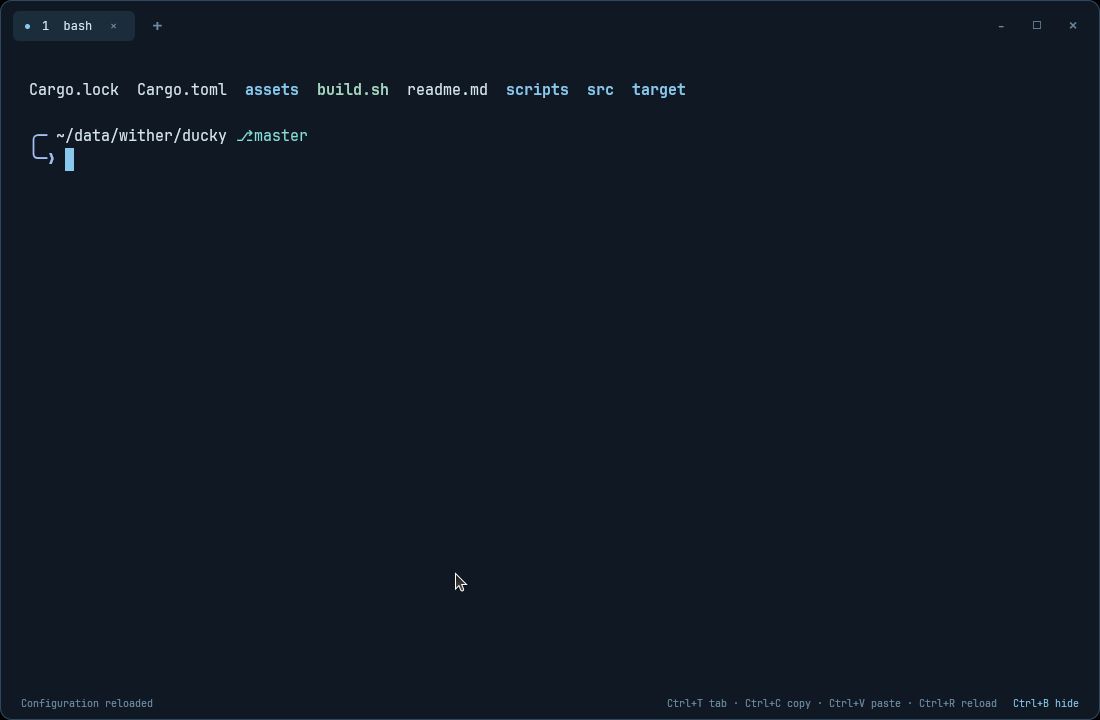
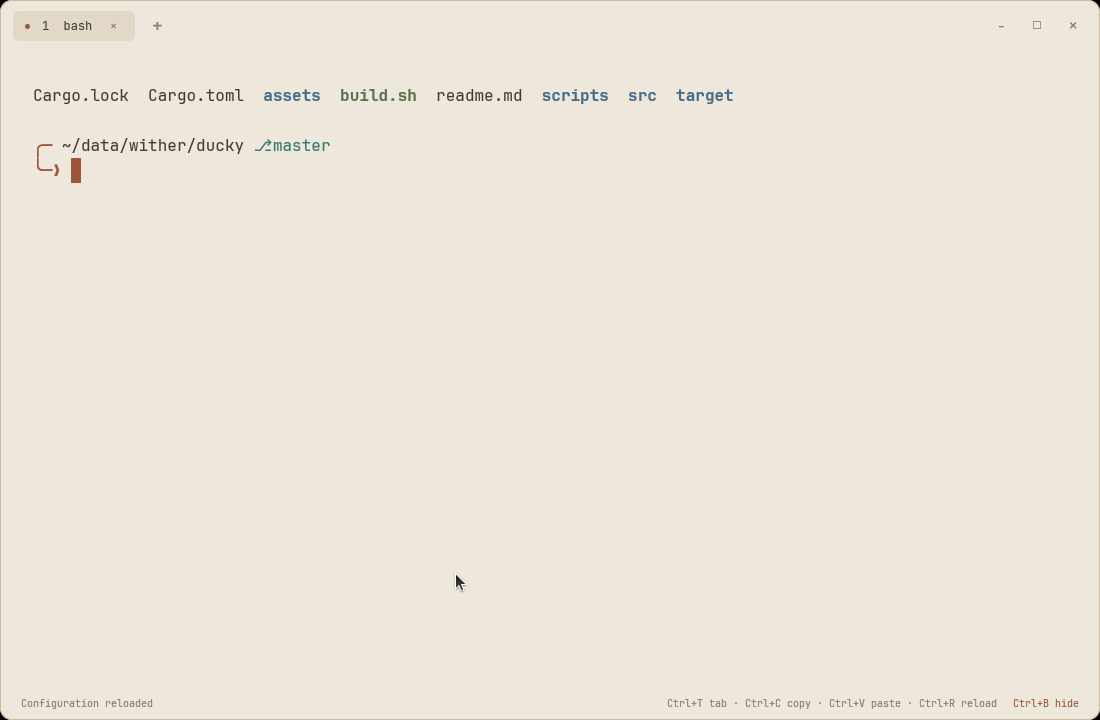
Bundled themes: ember, glacier, paper, and lagoon. To apply a theme while keeping your other settings, use a local config table and end your Lua file with:
for key, value in pairs(require('themes.glacier')) do config[key] = value end
return config